Read the picture before reading the percentage
The percentage tells you how close your submitted color came to the reference. When a round resolves, the game places the reference above both players’ color-modified answers and gives each one a score. Compare the pictures first. Then use the numbers to judge the size of the gap.
Scores can display 0.00% and climb above 90%. The game also has an enabled 100% Accuracy badge, so a perfect displayed result is recognized. There is no shortcut hidden in those facts. Connect each percentage with a difference you can see in hue, brightness, or saturation.
What the result screen tells you
The result screen shows the target, both submitted colors, and their percentages. That is enough to answer the questions that matter during a duel, even though the calculation stays hidden.
| Result pattern | Safe reading | Next action |
|---|---|---|
| Your percentage is higher | Your submitted color was the closer match in that comparison | Remember what worked, then reset for the next prompt |
| Both percentages are close | Both players reached a similar level of color accuracy | Make smaller shade adjustments on a repeated visual type |
| Your percentage is far lower | A large visible mismatch remains | Check hue before fine-tuning brightness |
| Score is near the top but not perfect | The broad choice is strong, with a smaller shade difference left | Compare warmth, brightness, and saturation one at a time |
Score is 0.00% | The submitted result is at the observed bottom of the displayed range | Recheck the target feature and color family first |
The percentages help diagnose a color choice. They do not, by themselves, explain heart changes, rank points, matchmaking, or the final duel result.
The scoring details that remain hidden
The game does not publish its color-distance formula, channel weighting, or rounding method. Avoid claims about raw RGB, HSV, or a particular perceptual model. Find a visible difference between the reference and preview, then correct it when a similar color returns.
Different mathematical models can separate two colors in different ways. Guessing the model is less useful than noticing that your blue was too pale or leaned too far toward cyan.
Diagnose the three common error types
Wrong hue family
Hue is the first check. If the target looks red but your result leans orange, or the target looks blue while your answer leans cyan, move around the color family before changing brightness. Dark orange is still not red.
Wrong brightness
When the color family is right but your result looks too pale or too deep, hold the hue steady and adjust the light-dark value. Hair highlights and deep outlines can pull your eye away from the main midtone, so compare the largest base-color area.
Wrong saturation
A vivid answer beside a muted reference will look neon. A low-saturation answer beside a strong reference will look gray or washed out. Correct the color intensity without drifting into another hue.
Use a one-correction review
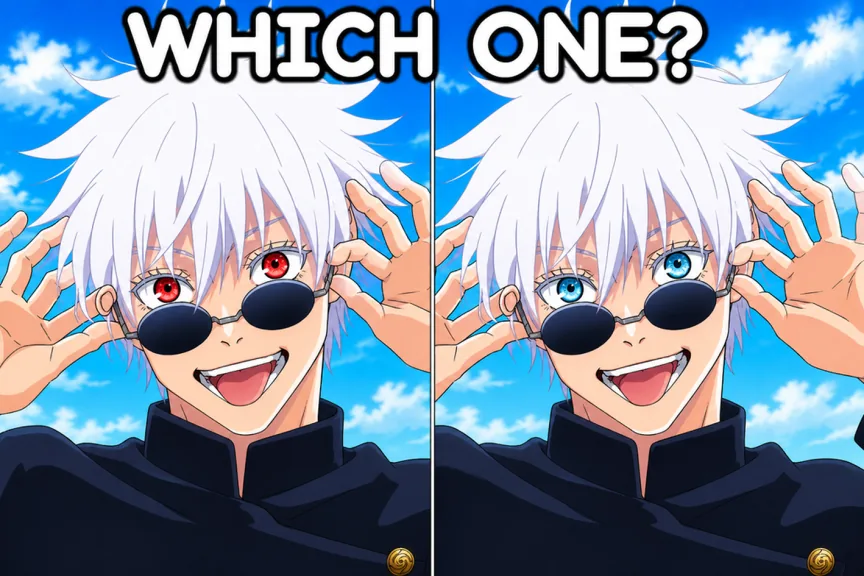
Take one lesson from a score, not five. Pick the largest mismatch and turn it into a short correction:
- “Right hue, too dark.”
- “Too warm; move away from orange.”
- “The base hair was muted, not vivid.”
- “I matched the background instead of the iris.”
- “The shade was good, but I submitted too late.”
Carry only that correction forward. The next prompt can feature a different character area and color family, so copying the old picker position would create a new mistake.
Compare narrow and wide percentage gaps differently
A narrow gap calls for restraint. If both submitted images look close to the target, preserve the hue and test a smaller brightness or saturation change when a similar shade returns. Rebuilding the whole answer from scratch throws away the part you got right.
A wide gap calls for a basic check. Confirm which character feature the prompt targets, then check the broad hue. Fine adjustments are wasted when you matched blue clothing but the important feature was red hair.
Raw score chasing can mislead you. A high percentage on one prompt does not prove that the same picker position will work on another image. Match the current reference each time.
How the accuracy badge fits in
100% Accuracy is one of the experience’s three enabled public badges. Its name and description both point to a 100% result. That is a clear goal, but the badge details do not give you a special route, fixed character answer, or exact picker position.
Check the badge panel on the current Roblox experience page before planning a run. Badge details can change. During the match, focus on the reference and wait for the displayed percentage. A close-looking answer is not the same as a confirmed 100% result.
Build an accuracy practice loop
Use five steps after any result worth remembering:
- Compare your image with the reference.
- Name the largest error: target feature, hue, brightness, or saturation.
- Look at the percentage to judge whether the miss was narrow or wide.
- Save one correction in plain language.
- Clear the old color from your attention before the next prompt.
Over several rounds, this creates a useful pattern. If most misses are brightness errors, slow down after selecting the hue. If most are wrong-feature errors, spend the opening seconds scanning hair, eyes, clothing, and accents before touching a swatch.
FAQ
What does the Guess the Anime Color accuracy score mean?
It shows how closely a submitted color matches the displayed reference for that resolved answer. Compare the images alongside the percentage to understand the result.
Can the score reach 100%?
Yes. The game has an enabled 100% Accuracy badge, and its public description also says 100% accuracy.
Does the game use RGB or HSV scoring?
The game does not document its formula or color-space weighting. Diagnose visible hue, brightness, and saturation differences instead of assuming a model.
Why can two blue answers get different percentages?
They can differ in warmth, brightness, or saturation even when both belong to the blue family. Compare those properties separately.
Does a higher percentage remove a fixed number of hearts?
The percentage comparison and the heart display are both visible, but an exact heart-damage formula is not documented. Read the current heart state after the round resolves.